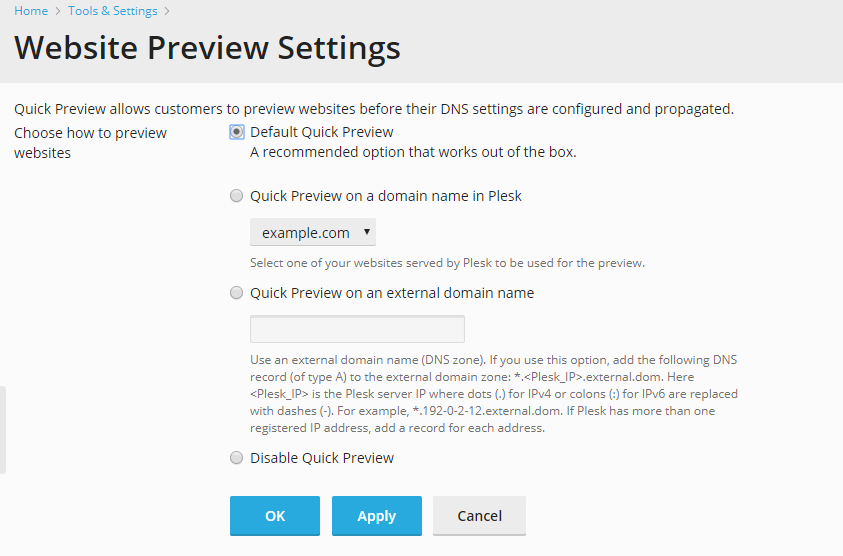
Plesk enables you and your customers to preview the websites for which
DNS propagation has not yet been completed by presenting them as
subdomains of a different domain. To change site preview settings, go to
Tools & Settings > Website Preview. You can choose one of the
four available options:
-
Default Quick Preview. This is a recommended option, and it is
enabled by default. It uses the Plesk IP address for the site preview
purposes.-
Require authentication - select this option to switch on
password protection for website preview. In this case, a user will
have to provide the system user credentials (specified during the
subscription creation) to preview a website. This option is
disabled by default, and is only available in Plesk for Windows.
-
Require authentication - select this option to switch on
-
Quick Preview on a domain name in Plesk. If you want to use a
different domain hosted in Plesk for site preview, select this
option. You will need to select one of the domains belonging to you
to be used for site preview. Note that the site preview functionality
will be disabled for the chosen domain. -
Quick Preview on an external domain name. If you want to use a
different domain hosted outside for site preview, select this option.
You will need to specify the name of the domain to be used for site
preview. You will also need to configure an “A” DNS record for that
domain. The record should look like this:
*.<Plesk_IP>.<domain_name>.
where <domain_name> is the name of the domain, and <Plesk_IP> is the
IP address of the Plesk server with dots(.) for IPv4 or colons (:) for
IPv6 are replaced with dashes (-). For example, if your Plesk IP address
is 192.168.10.20, and the name of the domain you want to use is
example.com, the “A” record will look like this:
*.192-168-10-20.example.com.
If there is more than one IP address registered in Plesk, add a
corresponding record for each of them.
-
Disable Quick Preview. If you want to disable the ability to
preview websites, select this option.