Watch the video tutorial
To create an email address:
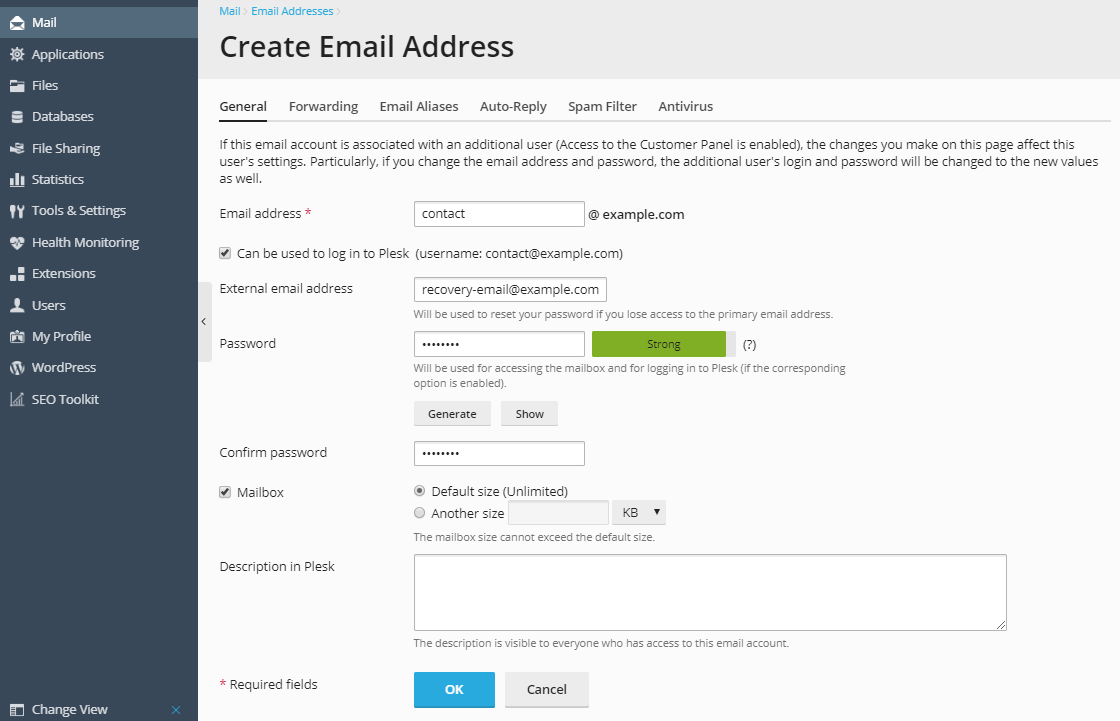
Go to Mail and then click Create Email Address.
Specify the following mailbox settings:
Email address. Type the left part of the email address before
the @ sign, and, if you have several domain names on your account,
select the domain name under which the email address will be
created.Can be used to log in to Plesk. Select this option if you want
Plesk to create an additional user for the mail account owner. By
default, this user has the role Application user. You can change
this role and other user’s settings later. For details, see the
section (Advanced) Managing Additional User
Accounts.External email address. Specify an email that
will be used to reset your password if you lose access
to your primary email address.Password. Set the password for accessing the mailbox. If you
keep the option Can be used to log in to Plesk selected, the
user will use the mailbox password also for logging in to Plesk.The maximum number of outgoing email messages. This setting is
displayed only if the limitations on outgoing mail are switched on
by your hosting provider. If so, you can either set the limit on
the number of messages per hour, or leave the default value. For
details, see Limiting Outgoing Mail.Mailbox. Turning off this option makes sense only if you want
to use this address as a mail forwarder, which will forward all
incoming mail to another address.If you leave the option Mailbox selected, specify the mailbox size
or use the default size defined by the provider’s policy or your
service plan.Description in Plesk. You can add additional information about
the email address. This information will be displayed in the list
of email addresses on the Mail section of your subscription.
The hosting provider and anyone who has access to this mailbox
will be able to view this description.