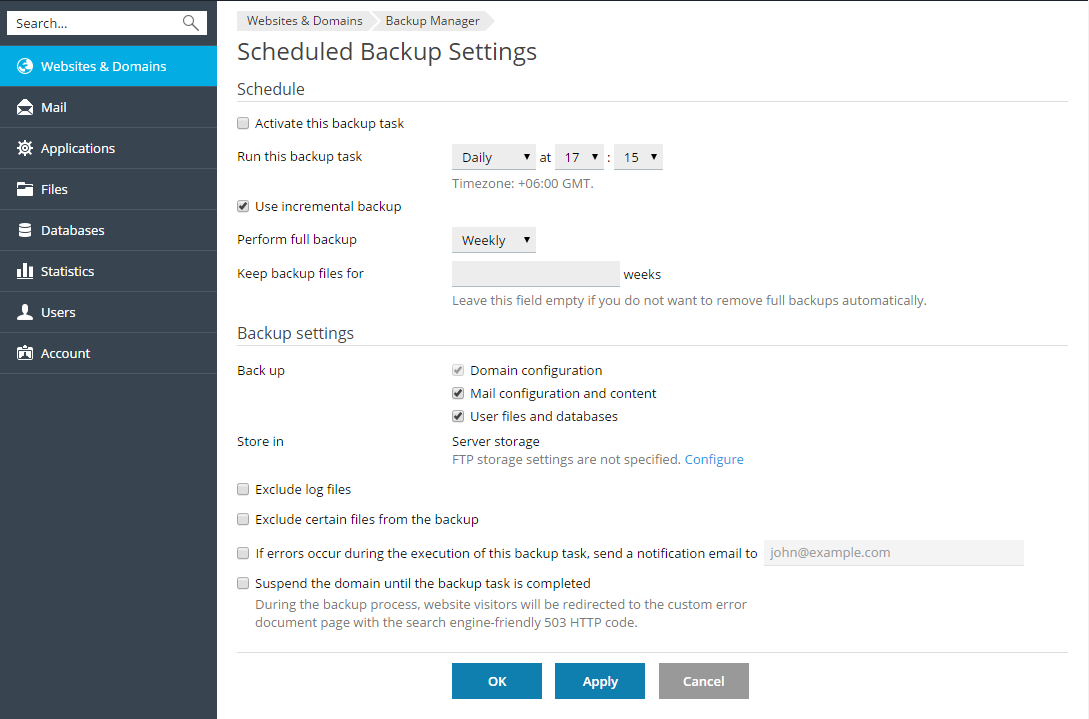
To schedule backing up of data:
Go to Account > Back Up Websites > Schedule.
Select the Activate this backup task checkbox and specify the
following:When and how often to run the backup (Run this backup task).
To reduce the disk space usage and the duration of backup process,
select Use incremental backup. Specify how often full backups
will be made (Perform full backup). The list of allowed values
depends on the time period selected in Run this backup task.To make Plesk automatically remove old backups, specify for how
long the backups should be stored (Keep backup files for).If you do not use incremental backing up, then the unit of time is
the same as the one selected in Run this backup task (days,
weeks, or months).If you use incremental backups, then the unit of time depends on
the time period selected in Perform full backup (weeks,
months, or years).What data to back up (Back up). You can back up only account
settings, or account settings and all related data.Location where to store the backup file (Store in).
Splitting of the backup file. To create a multi-volume backup,
select the respective checkbox and specify volume size in
megabytes. Note that volume size cannot exceed 2047 megabytes.Note: Multiple volumes are supported for backups stored in the
personal FTP storage.Email notification on backing up errors. If you want to send an
email notice when something goes wrong during backing up, type the
email address you need.
Click OK.