When a domain is created in Plesk, a DNS zone containing all the
necessary DNS records is created automatically. However, you can add,
modify, or remove DNS records, if the corresponding permission is
granted by the hosting provider.
Managing DNS records
To see the records currently present in a domain’s DNS zone, go to
Websites & Domains > DNS Settings. You can also add, modify, and
remove records on this screen.
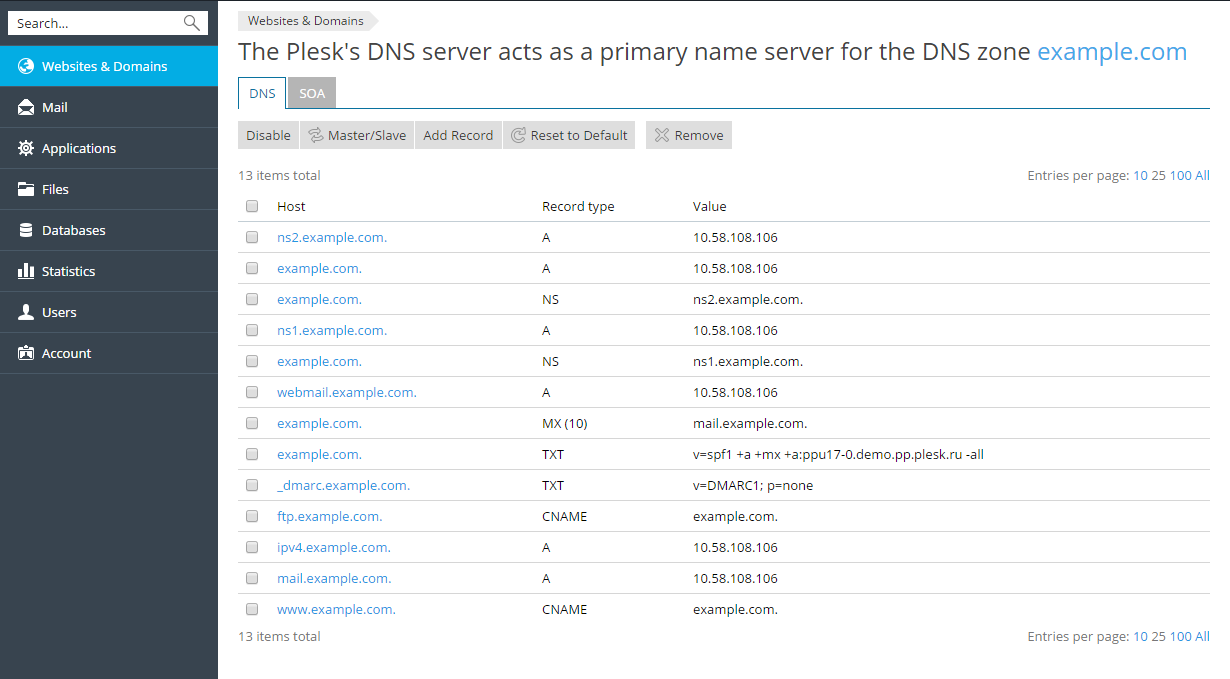
To add a record, click Add Record. To modify a record, click its
name. To remove a record, select the checkbox next to the record’s name
and click Remove. Note that removing certain records will affect the
functioning of your domain. For example, removing the A record will
prevent it from resolving. If you made changes to the DNS zone that
affect the functioning of your website, you can restore the default DNS
records by clicking Reset to Default. This will undo all the changes
made to the DNS zone and recreate it according to the server-wide DNS
template. Note that any custom records you may have added to the zone
will be lost.
The DNS zone also includes the SOA record. You can see and change the
SOA record values in Websites & Domains > DNS Settings >
SOA. Selecting the Use serial number format recommended by IETF
and RIPE checkbox changes the way Plesk stores SOA serial numbers from
the Unix timestamp to the YYYYMMDDNN format recommended by RIPE. Using
the YYYYMMDDNN format is required for many domain registrars, mostly
European ones. If your registrar refuses your SOA serial number,
enabling this option may help.
Note: If SOA serial numbers are stored in the format recommended by IETF
and RIPE, the number of daily changes of the SOA record is limited by
98 times. If you change a SOA record in a domain 98 times during one
day, the SOA serial number cannot be changed any more, clicking the
Default button will remove all the records from the DNS zone, and
the DNS service for the DNS zone cannot be switched on/off or
switched to slave/master mode.
Applying DNS Template Changes (Plesk for Linux only)
Plesk for Linux gives you the ability to synchronize the records in the
server-wide DNS template with the DNS zone of your domain. The
synchronization is performed according to the following rules:
- User-modified records always remain intact (are not modified or
removed under any circumstances). - Records added to the template are added to the zone.
- Records removed from the template are removed from the zone (records
to which you made changes are not removed). - Records modified in the template are modified in the zone (records to
which you made changes are not removed).
To synchronize the records between the DNS template and your DNS zone,
go to Websites & Domains > DNS Settings and click Apply DNS
Template.