If you want to select specific Plesk components for installation, you
can install Plesk using the interactive console. Follow these steps to
begin:
Log in to the server via RDP.
Download Plesk
Installer.Launch the Windows command prompt. Change the working directory to
the one in which you saved the installer binary, then run the
following command:plesk-installer.exe --console
This will launch the console in the command prompt window.
If you want to install an earlier version of Plesk, run:
plesk-installer.exe --console --all-versions
If you prefer to use a graphical interface for installation, see the
Installer GUI topic.
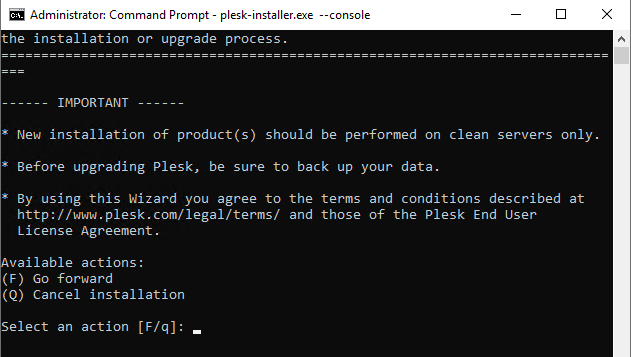
Read the text marked with “IMPORTANT”, then type F in the
command prompt and hit the Enter key to proceed.
Next, you need to select which version of Plesk to install.
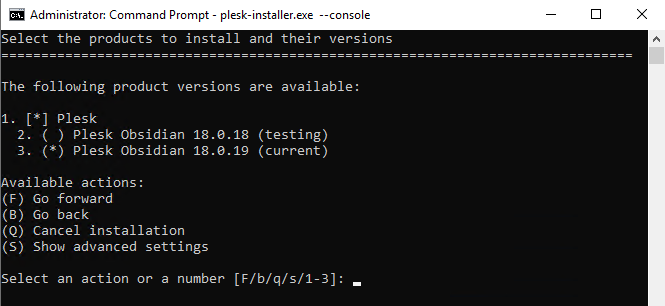
If you ran the installer with the --all-versions
option, the list of available Plesk versions will be different.
Here you can also see how to specify a number of advanced settings
by typing S:
- The directory to which the installer will download files.
- The source of the installation files. By default, they are
downloaded from Plesk servers. However, you may want to install from
a different server (for example, if you have set up a local
mirror), or from the local disk (if you have
downloaded the installation files beforehand). - The proxy server address and, if required,
username and password (if you are installing Plesk on a server behind an HTTP proxy), and so…